Belangrijkste opmerkingen
- Dynamics 365 SharePoint integration involves three layers of permissions: Microsoft 365 and the Power Platform, Dynamics 365 security roles, and SharePoint site, library and folder permissions.
- Setting it up needs elevated rights. Enabling the integration requires a global administrator, and configuring document management requires System Administrator or System Customizer in Dynamics 365, plus matching SharePoint rights.
- Day-to-day users don't need a special Dynamics role. They need the right privileges on the document location tables en de right SharePoint permissions on the locations they use.
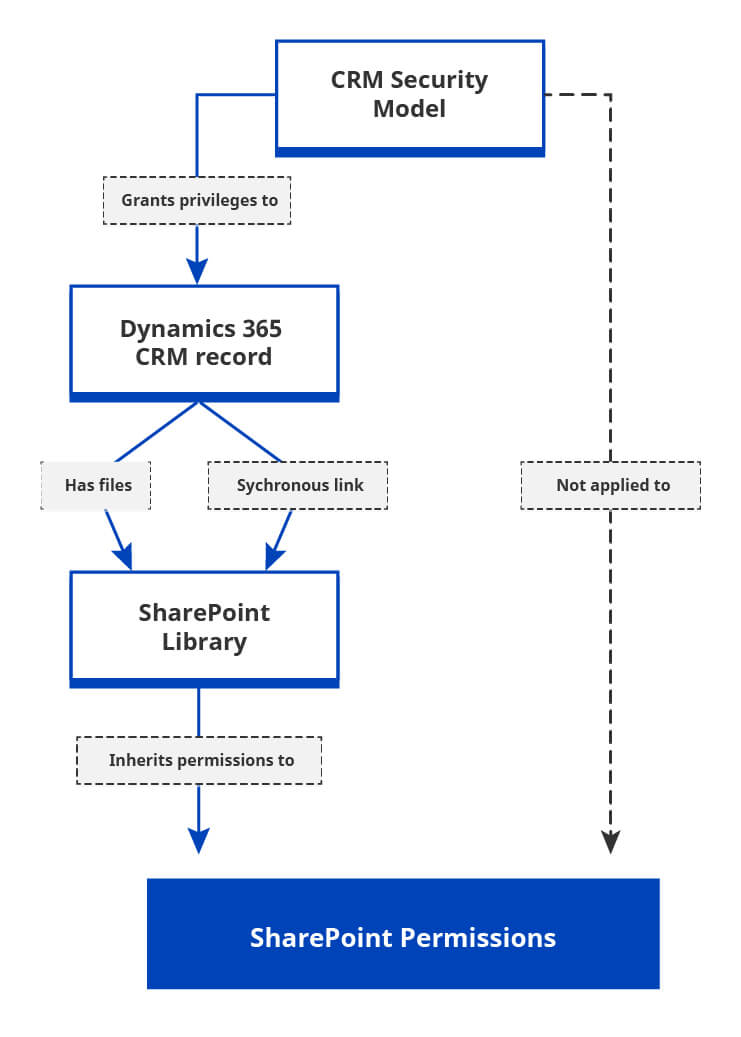
- None of these settings connect access to a Dynamics 365 record with access to its documents. If a document should be as private as its record, you must handle that separately.
Dynamics 365–SharePoint integration connects document management, but it does not automatically synchronize Dynamics 365 record permissions with SharePoint file or folder permissions.
Ontdek de tool voor het synchroniseren van machtigingen voor Dynamics 365 en SharePoint
The three permission layers
When people ask about "Dynamics 365 SharePoint integration permissions", they usually mean one of two things:
- What permissions do I need to set up and use the integration?
- What controls who can open a document once it's in SharePoint?
The first question has a clear answer in Microsoft's documentation. The second doesn't, because it depends on the three layers working together and the integration doesn't link them.
| Layer | Controls | Typical tools |
|---|---|---|
| Microsoft 365 / Power Platform |
Who can enable the integration, tenant boundaries |
Admin centers, Entra ID |
| Dynamics 365 / Dataverse |
Who can configure document management and see records |
Security roles, business units, teams |
| SharePoint | Who can open sites, libraries, folders and files |
Site groups, folder rechten |
What permissions do day-to-day users need?
Day-to-day tasks need much less than setup. Microsoft's current table lists the minimum for each task:
| Taak | Dynamics 365 security role |
SharePoint site rechten |
Document Locatie rechten |
|---|---|---|---|
| Enable or disable document management |
System Administrator or System Customizer |
Create, Read, Write, Append, Append To |
n.v.t. |
| Make a site the default / validate sites |
System Administrator or System Customizer |
Read, Write | n.v.t. |
| Create or edit document location records |
Salesperson (or Basic User) |
Read, Append To | Create, Read, Write, Append, Append To |
| Add or edit a location from a record |
Any | Read, Append To | Create, Read, Write, Append, Append To |
| Fix a broken location | Any | n.v.t. | Read, Write |
| Manage documents | Any | n.v.t. | Read, Write |
Bron: Microsoft Learn, permissions required for document management tasks.
The "Document Location permissions" column refers to privileges on the SharePoint Document Location table in the user's Dynamics security role.
For managing documents, the role can be "Any". What matters is that it includes the right privileges on the document location tables, and that SharePoint grants the user access to the place where the files live. This is the most common reason documents work for the administrator who built the app but not for anyone else.
How does the integration identity work?
The integration identity is what lets Dynamics 365 talk to SharePoint on users' behalf.
In Dynamics 365 Online with SharePoint Online, server-based integration uses server-to-server authentication between your environment and SharePoint. Users don't need to be signed in to both at once. Users still need appropriate permissions on the SharePoint site collection where the document management components are installed.
In on-premises deployments, the identity needs more attention. Microsoft's documentation calls for the System Administrator role to run the wizard, and local administrator rights if you use a self-signed certificate for evaluation. It also requires the CRMAppPool identity to have read access to the certificate used for server-based authentication. The SharePoint farm needs a matching trust setup, including the realm ID.
When something fails here, the symptoms are connection errors, not "Access Denied" for a single user. That's a useful distinction when you troubleshoot.
Do Dynamics 365 permissions automatically apply to SharePoint documents?
No. Dynamics 365 and SharePoint evaluate access independently.
Dynamics 365 can determine record access through:
- Security roles and privilege depth
- Bedrijfseenheden
- Record ownership
- Owner teams and access teams
- Direct record sharing
- Microsoft Entra ID group teams
- Hierarchy security
SharePoint evaluates access through:
- Site and library permissions
- SharePoint and Microsoft 365 groups
- Folder and file permissions
- Inherited or unique permissions
- Sharing links and direct grants
Native integration associates a Dynamics 365 record with a SharePoint document location. It does not translate the record’s effective Dynamics 365 access into corresponding SharePoint permissions
This creates several common security gaps:
- A salesperson loses access to an Account after reassignment but can still open its documents directly in SharePoint.
- A manager shares an Opportunity with a colleague, but the colleague receives “Access Denied” on the Documents tab.
- A user is disabled or removed from Dynamics 365 but retains SharePoint access through a group or direct permission.
- Team membership changes in Dynamics 365 without a corresponding SharePoint permission update.
- A user’s Dynamics 365 access is removed, but an earlier SharePoint grant remains in place.
These scenarios do not necessarily mean that the integration is malfunctioning. They mean that two separate authorization systems are working according to their own configurations.
Troubleshooting: symptom, cause, fix
| Symptom | Likely cause | What to check |
|---|---|---|
| Documents work for the admin, not for other users |
The user's role lacks privileges on the SharePoint Document Location table (and sometimes the SharePoint Site table) |
Review the role's privileges on both tables |
| Wizard validation fails |
Wrong URL, site missing, different tenant, or admin without access to the site |
Check the URL, the tenant and the admin's SharePoint access |
| "Access Denied" after a record is shared or reassigned |
Dynamics access changed, SharePoint folder permissions didn't |
Compare the user's effective access in both systems |
| A user lost record access but still opens files |
SharePoint permissions unchanged | Audit direct SharePoint access for that folder |
| Errors despite apparently correct rechten |
SharePoint-side causes such as a site user ID mismatch or limited- access lockdown mode |
Run Microsoft's Check User Access diagnostic and review those instellingen |
How can you keep Dynamics 365 and SharePoint permissions aligned?
There are three main approaches.
1. Manage SharePoint permissions manually
Manual administration may be sufficient for a small, stable environment with simple access rules and infrequent changes.
Its primary weakness is permission drift. Every reassignment, sharing action, team-membership change or user offboarding event may require a separate SharePoint update. Revoking access is particularly easy to overlook.
2. Build permission automation with Power Automate
Power Automate can support a clear and deliberately limited rule, such as granting access to an Opportunity owner and a fixed sales group.
It becomes significantly more difficult when the automation must reproduce effective Dynamics 365 access across:
- Ownership changes
- Sharing and unsharing
- Owner and access teams
- Team-membership changes
- Security-role or business-unit changes
- Bevoorrechte diepte
- Hierarchy security
- Access revocation
- Failed runs and reconciliation
A production implementation must handle both granting and removing access. It also needs monitoring, retry logic, exception handling and a process for reconciling missed changes.
3. Use a dedicated permission replication tool.
A dedicated tool is appropriate when SharePoint document access must continuously follow Dynamics 365 security across many users, records and access-change scenarios.
| Aanpak | Best suited to | Main advantage | Main limitation |
|---|---|---|---|
| Manual management | Small, stable environments | Simple to begin | High administrative effort and permission drift |
| Automatiseren | Limited, explicit access rules | Flexible Microsoft ecosystem automation | Complex to reproduce effective security reliably |
| Dedicated replication software | Dynamic or enterprise-scale access | Purpose-built permission synchronization | Requires additional software and implementation |
How CB Dynamics 365 to SharePoint Permissions Replicator fits
CB Dynamics 365 to SharePoint Permissions Replicator continuously monitors Dynamics 365 for changes that affect access and apply the matching permissions to SharePoint.
It provides a dedicated alternative to manually updating SharePoint permissions or developing and maintaining custom permission automation.
It handles:
- users, teams, access teams and access team templates
- Entra ID (Azure AD) security group teams and Microsoft 365 group teams
- security roles and business units
- record sharing, privilege depth and hierarchy security
It maps Dynamics users to SharePoint users automatically, and you can adjust or customize the mapping, including custom permission levels. It also logs every SharePoint permission change it makes, so compliance teams have an audit trail. It supports Dynamics 365 Customer Engagement (Sales, Customer Service, Field Service), custom Dataverse solutions, older Dynamics CRM versions, SharePoint Online and SharePoint 2013 to 2019. You can deploy it self-hosted, on Azure or as SaaS in the EU or US. It also offers External User Access for customers, vendors and partners who need documents but don't have a Dynamics 365 account.
If you also need a better folder hierarchy, SharePoint Structure Creator works alongside it. Folder design and permission replication are separate problems, and neither solves the other.
Who benefits
- Dynamics 365 and CRM admins get fewer "Access Denied" tickets and no manual folder updates after every reassignment.
- IT security and compliance leads get documents that follow CRM access, plus an audit trail for GDPR, NIST or PCI DSS reviews.
- IT teams avoid building and maintaining permission automation.
- Microsoft partners get a repeatable way to deliver secure document management.
Go-live checklist
- Global administrator available to enable the integration, and the same-tenant requirement confirmed.
- Setup done by someone with System Administrator or System Customizer and the SharePoint rights listed above.
- Roles tested with real users, not only administrators.
- Direct SharePoint access tested as well as access through Dynamics 365.
- A decision recorded on whether documents must follow record access.
- If yes, both granting and removing access tested.
- Someone owns monitoring after go-live.
Bekijk hoe de Replicator voor de machtigingen van CB Dynamics 365 tot en met SharePoint werkt
Vaak gestelde vragen
Which permission do I need to enable SharePoint integration in Dynamics 365?
Why can the admin see documents, but other users can't?
Does Dynamics 365 security automatically apply to documents in SharePoint?
Can I use Power Automate to mirror permissions?
Is er een gratis proefperiode?
Verder lezen:
Setting up the SharePoint integration in Dynamics 365 →
Do Your Dynamics 365 Permissions Actually Sync with SharePoint? →
How to Sync SharePoint Permissions with Dynamics 365 at Enterprise Scale →
Conclusie
Dynamics 365–SharePoint integration is straightforward to configure when the required permissions are clear. The bigger challenge is understanding what the integration does not handle: Dynamics 365 record security and SharePoint document security remain separate.
Getting the right administrator, Dynamics 365 security roles, SharePoint permissions, and document location privileges in place is essential for a reliable setup. But if your business expects SharePoint documents to automatically follow changes in Dynamics 365 access—such as record ownership, team membership, sharing, business units, or hierarchy security, native integration alone does not provide that synchronization.
For simple and stable access rules, manual management or Power Automate can work. But as permissions become more dynamic, continuously keeping Dynamics 365 and SharePoint access aligned becomes increasingly difficult to build, monitor, and maintain.
That is where a dedicated Dynamics 365–SharePoint permissions synchronization approach can help. CB Dynamics 365 to SharePoint Permissions Replicator continuously monitors relevant Dynamics 365 security changes and applies the corresponding permissions in SharePoint, including changes involving users, teams, business units, sharing, roles, and hierarchy security.
The key takeaway is simple: integrating Dynamics 365 with SharePoint connects your systems, but it does not automatically synchronize their security models. If your documents need to follow CRM access consistently, treat permission synchronization as a separate requirement, and plan for it before access issues become a recurring administrative problem.
Meer over Dynamics en de integratie met SharePoint
Dynamics 365 SharePoint-integratierechten: wat beheerders en gebruikers nodig hebben
Hoe Stars Behavioral Health Group de opslagkosten voor Dynamics 365 heeft verlaagd door bijlagen over te zetten naar SharePoint
ORBIS en Connecting Software dichten het verborgen bevoegdhedenlek in Microsoft Dynamics 365