
GWMMO — Google Workspace Migration for Microsoft Outlook — was introduced by Google in 2010 for individual users or small groups to import Outlook data into Google Workspace (then called G Suite).
GWMMO performs a local migration by running on a user’s machine. The tool copies mail, calendar, and contacts from PST files or Exchange accounts into Gmail. It does that job well for single-use cases.
However, GWMMO stops there. It is not a system for enterprise migrations:
- It is not built to manage hundreds or thousands of mailboxes.
- It lacks automation.
- It runs on client devices, which means manual setup and productivity loss.
- It does not track errors globally, retry failed items, or support delta synchronization.
- Once it completes an import, it stops. Any new data created afterward remains unsynchronized.
For enterprise-scale migrations, these limits are a real problem.
The Alternative to GWMMO for Enterprises
Enterprise migrations demand a different method — one that removes client dependency, eliminates downtime, and provides monitoring and verification at scale. IT administrators need a server-side automated process to manage the entire sequence for all the mailboxes.
CB Exchange Server Sync for Gmail and Google Workspace fills that gap. It provides an automated, bidirectional synchronization system between Google Workspace and Microsoft Exchange — including on-premises, Exchange Online, GCC High, and all kinds of complex configurations.
It operates entirely server-side, requires no Outlook or PSTs, and delivers continuous synchronization for as long as you need it, even after migration. This approach has consistently delivered successful outcomes for over ten years when the correct steps are followed.
Step-by-Step Automated Migration Guide
This section outlines the standard procedure for automating a Google Workspace migration to Microsoft Exchange using CB Exchange Server Sync for Google Workspace.
We strongly recommend watching the following video first: seeing the process in action will help you know what to expect and confidently verify your results once the migration is complete. As you will see, for an end-user, this is a way to migrate from Outlook to Gmail, but for the IT admin, it is a server-side process from Exchange to Google that encompasses as many accounts as needed in bulk.
Before we start, a note to say that for high-volume projects, we recommend the self-hosted deployment option. Large-scale migrations generate substantial data traffic in a short timeframe, so self-hosting delivers full control over resources, lower operational costs, and consistently high performance—all crucial when synchronizing hundreds or thousands of mailboxes.
This step-by-step guide, therefore, presents a migration with a self-hosted deployment of CB Exchange Server Sync for Gmail and Google Workspace.
⚙️Tip:
Follow the steps below in order, verifying the outcome at each stage before moving on. This ensures your migration is successful and any issues are caught early.
Step 1: Prepare the Self-Hosted Environment
- System Requirements:
Ensure that both the source and target environments are supported. CB Exchange Server Sync operates with Gmail and Google Workspace, commercial Microsoft 365, Office 365, Exchange Server 2013, 2016, 2019, and Exchange Online, as well as Microsoft 365 Government clouds — including GCC High, DoD, and Secret environments.
Confirm that the machine or virtual machine you will use to install CB Exchange Server Sync for Gmail and Google Workspace meets all the requirements specified in the documentation, namely: - Windows 10 or later, or Windows Server 2016 or later machine
- ASP.NET Core 8.0 Runtime - Windows Hosting Bundle
- Network Configuration:
Ensure outbound connectivity to both Exchange (on-premises or Exchange Online) and Google Workspace. - Installation:
Download and run the CB Exchange Server Sync installer. Follow the provided guidance and use the checklist to confirm that all is correctly installed.
Want more details or have a unique environment? We’re happy to provide comprehensive technical documentation or arrange a free consultation with one of our experts—just ask!
Step 2: Activation and Setup
- Create Service Accounts:
Prepare dedicated Exchange and Google Workspace service accounts as described in the user manual so you can use these accounts for the synchronization. - Activate the Product:
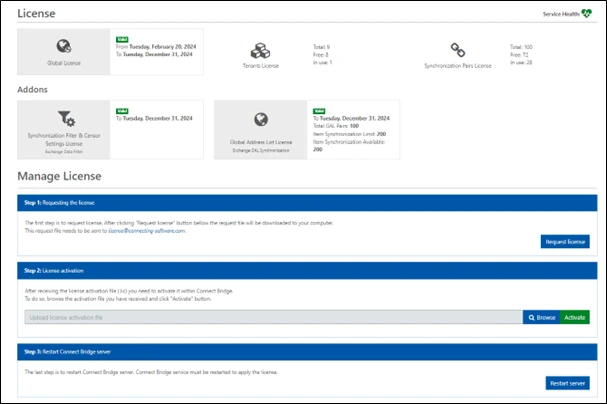
Activate your purchased license in the CB Exchange Server Sync management portal in your self-hosted setup.
- Configure Server Settings:
Complete the server settings and test the connection to both the Microsoft Exchange / Microsoft 365 server and the Google server.
Step 3: Create Sync Pairs in Bulk
-
Once the servers are set up, the next step is to create the sync pairs so that the tool knows which origin account should go into which target account. You can add the pairs manually, one by one, but for a migration, it is usually much easier to use the batch creation option.
Batch Creation Overview:
- In the admin portal, open Synchronization Pairs, then select Create Pairs in Batch.
- Prepare a CSV file (structure and sample available in the user manual or upon request).
- Each row defines a unique mailbox sync pair, and can have different settings, for example, in terms of conflict policy.
- One of the settings for each synchronization pair is the Start day of sync. When you set this up, all items created or modified on or after that date will be synchronized. Not indicating a start day will make all items sync, which will take longer.
- Folder mapping can be set up using the documented codes (e.g. “1/2/5/7” for Inbox/Sent/Calendar/Contacts) to ensure every relevant mailbox item is included.
- Optionally, consider the template-driven method. This lets you define sync settings once (as a template ) and associate all user pairs to that template in the CSV.
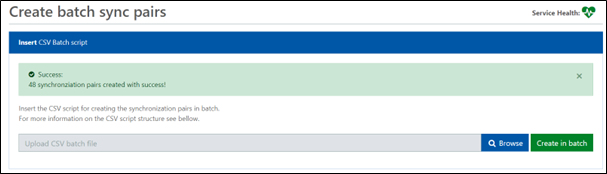
- Upload your CSV and start batch creation. The system provides feedback indicating whether the pairs were all created successfully.
Step 4: Run and Monitor Synchronization
- Select all the sync pairs (or all those you want to migrate) and choose Actions – Start. All syncs are full at first, then automatically switch to delta—capturing only new or changed items until cutover.
⚙️Tip:
Consider using a test environment or running a small pilot group before rolling out your full production migration.
- Track status and progress for all sync pairs via the Synchronization pairs list.
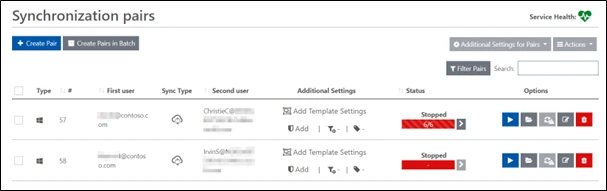
- The column Status gives you a summary of how the sync is for that pair
- Stopped: The pair is not running or synchronizing (as seen in the image).
- Starting: The pair is initiating but not yet running.
- Started: The pair is actively synchronizing items as they come.
- Processing: The pair is synchronizing items at the moment.
- Stopping: The pair has received an instruction to stop and will soon return to Stopped.
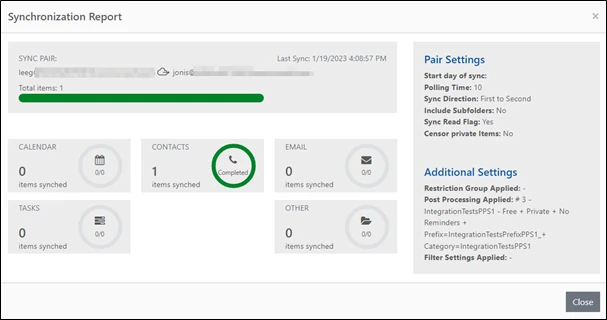
- You can go into a specific pair to check details on the status if needed, using the Statistics button to show the Synchronization Report.
Step 5: Cutover and Post-Migration
Once full data sync is validated, the migration is complete:
- You can switch DNS/MX records to redirect email to Google Workspace. Since 2023, this means the MX records should point to smtp.google.com (as explained in Google Support).
- You can optionally continue delta sync for all pairs for 1–2 weeks to avoid any problems and let end-users adjust.
- As a final step, you can decommission the Exchange mailboxes and export final logs for compliance/audit as required.
This completes the established migration process. By following this general process, IT administrators can deliver reliable, large-scale mailbox migrations with complete on-premises control, robust folder mapping, and continuous synchronization—far beyond GWMMO's limits.
Organizations across the world have migrated 10,000+ mailboxes using this workflow. Contact us for detailed manuals or a direct consultation to ensure the best setup for your environment!
Benefits of using CB Exchange Server Sync for Migration
What exactly do you get from choosing to do your Exchange to Google migration (or vice-versa) using CB Exchange Server Sync for Gmail and Google Workspace?
1. Scalability
The migration method used above with CB Exchange Server Sync for Gmail and Google Workspace is designed for high-volume environments. It runs parallel processes to handle thousands of mailboxes simultaneously, allowing large-scale operations to complete faster.
The delta synchronization mechanism transfers only new or changed items after the initial full run. This means that once data has been migrated, the system continues synchronizing incremental changes without repeating the full job. Depending on your project's goals, you might need this part or not, but if you do, this process saves time, bandwidth, and server resources.
2. Security and Control
All operations occur server-to-server. No user devices or third-party intermediaries are involved. Communication uses OAuth 2.0 authentication and full TLS encryption in transit.
Adequate configuration ensures data flows only in controlled directions, which for migrations is typically unidirectional paths. In compartmentalized or high-security environments, data diodes can be implemented for hardware-level assurance of the flow direction, as these are fully supported.
Advanced filtering and redaction tools provide granular control, excluding sensitive content, or attachments; redacting confidential details from calendar invites; and appending markers to track data origins.
Admins can deploy the solution in our SaaS (US or Europe), but for migrations, we recommend on-premises, private cloud, or secure self-hosted environments. This choice of deployment options enables you to have full control and is suitable for compliance with GDPR, ISO 27001, internal privacy regulations, and other enterprise frameworks.
3. Resilience and Monitoring
CB Exchange Server Sync for Gmail and Google Workspace mitigates migration risk and minimizes IT overhead through its built-in resilience features and monitoring tools, allowing IT teams to focus on strategic priorities rather than firefighting.
The system automatically retries transient failures, such as throttling or temporary connection drops.
Administrators can monitor sync progress from the dashboard and logs, and can also set up email notifications. Corrective actions, such as adjusting the polling interval, can be applied immediately — no waiting for end-user reports.
4. Zero-Disruption Synchronization
All synchronization happens in the background. End users continue working in Gmail or Outlook during migration. No service interruptions occur.
When migration completes, data between Exchange and Google Workspace remains aligned. This ensures continuity and user transparency — the opposite of the disruptive GWMMO experience.
CB Exchange Server Sync for Gmail and Google Workspace performs migrations quietly, predictably, and verifiably. The process follows a tested workflow with over ten years on the market.
Summary: GWMMO vs. CB Exchange Server Sync
For enterprise operations, which normally involve complex migrations under time constraints, CB Exchange Server Sync for Gmail and Google Workspace provides a reliable, automated system with monitoring, retry logic, and compliance-level logging.
The following comparison will help you methodically choose the right tool for your scenario.
|
Feature |
GWMMO |
CB Exchange Server Sync |
|
Operation Type |
Manual client tool, runs on user devices |
Automated server-side service |
|
Scale |
Up to a few users |
Thousands of mailboxes |
|
Sync Direction |
One-way only |
Bidirectional |
|
Monitoring |
None |
Real-time dashboard |
|
Delta Sync |
No |
Yes |
|
User Impact |
Interruptive |
Zero disruption |
|
Deployment |
Local PC |
On-prem / cloud / hybrid |
Conclusion
A migration from Google Workspace to Microsoft Exchange does not need to be manual, error-prone, or disruptive.
The proven process with CB Exchange Server Sync for Gmail and Google Workspace removes user dependency and introduces a reliable, automated workflow.
Each step — from connection to cutover — operates within a controlled sequence:
- Configure connections securely.
- Define and validate mailbox pairs.
- Run a full sync with automated retries.
- Verify results with logs and dashboards.
- Keep in delta sync for post-migration coexistence, for how long you might need it
GWMMO is not intended for enterprise-scale execution. CB Exchange Server Sync was built for it. It performs migrations quietly while preserving full administrative visibility.
Implement this process now, book a demo with Connecting Software to analyze how this can work for you.

References
Where Can I Find More Info on Exchange Synchronization?
About the Author

By Ana Neto
“I have been a software engineer since 1997 and I love to speak and write about technology and how it can make a difference. If you have any questions comments or suggestions, please reach out using the form below."