
Exchange/Outlook Data Filter
Control What Leaves Your Exchange Environment
Enable mailbox synchronization to allow user collaboration, while applying centralized, automated policies to ensure sensitive data remains within your on-premises Exchange environment.
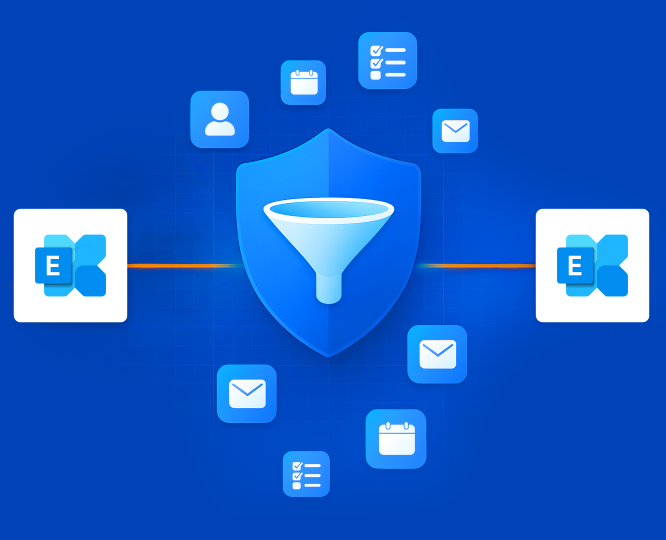
Enforce Data Policies with Every Exchange Synchronization
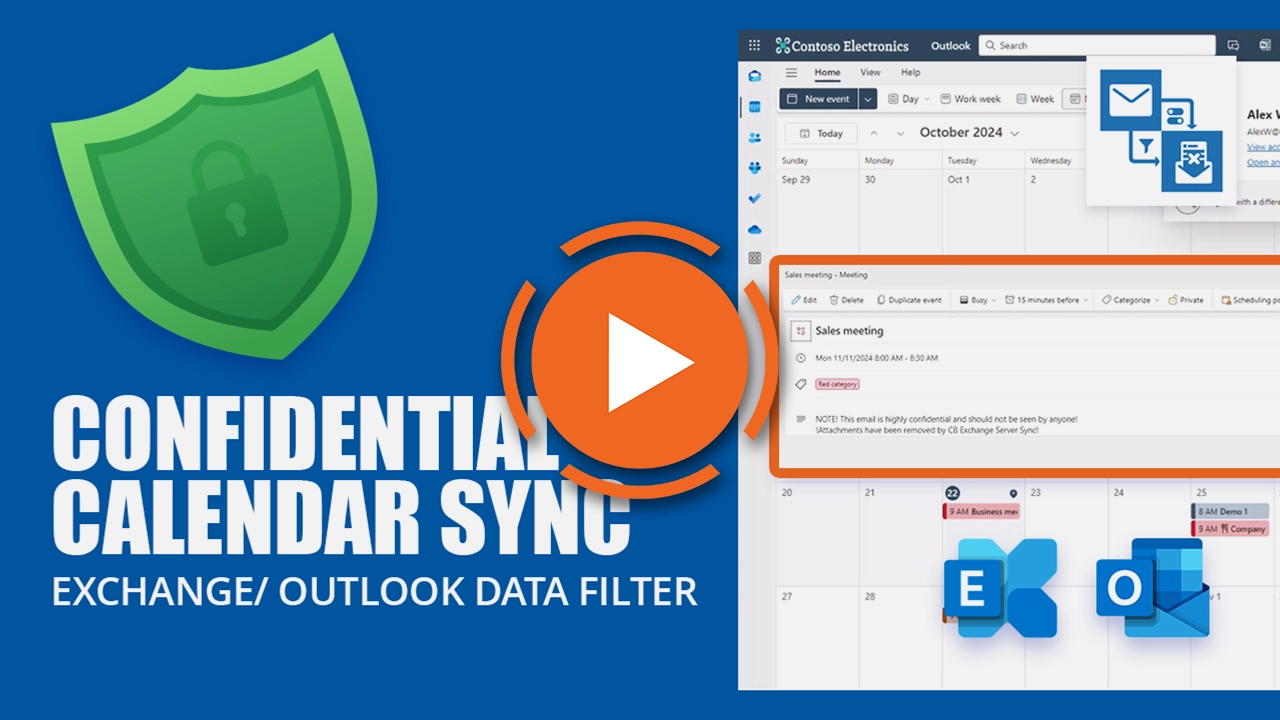
Built for regulated and high-security Microsoft Exchange on-premises deployments, Exchange / Outlook Data Filter is the add-on for CB Exchange Server Sync that gives you granular control over mailbox content synchronized between Microsoft Exchange environments.
It applies centralized content policies to filter or redact sensitive information, allowing users to collaborate externally without exposing confidential data.
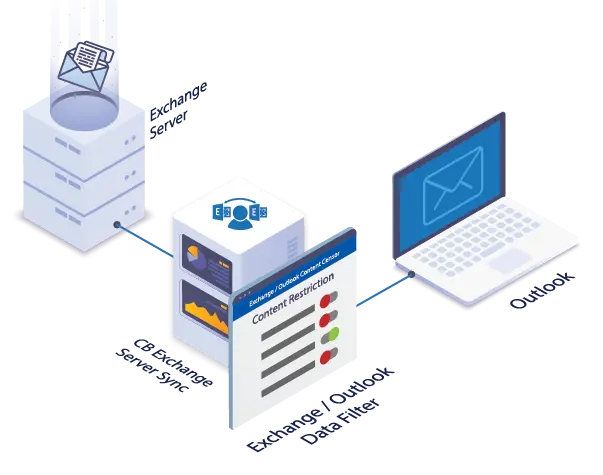
Think of it as a policy enforcement layer: CB Exchange Server Sync manages the synchronization, and the Exchange / Outlook Data Filter, formerly known as Exchange / Outlook Content Censor, decides what information can cross the boundary.
How DATA FILTER Works
The Exchange/Outlook Data Filter operates as a rule-based content control layer within your CB Exchange Server Sync infrastructure.
It operates between two Exchange servers, applying filtering and compliance rules as mailbox and calendar data are synchronized in real time, whether between internal and external environments, or across secure network zones.
Every message or appointment that matches your defined policies is analyzed before transfer, giving you complete control over what information crosses from one Exchange system to the other—without relying on end-user behavior or manual review.
The solution focuses on two main areas:
1 - Calendar Restriction Groups
Define how calendar data is shared externally. Remove attachments, limit body text, hide attendee details, and add prefixes like “[SECURE]” to mark synchronized items. Keep collaboration open while ensuring sensitive details never leave your secure Exchange environment.
2 - Mailbox Filter
Control which calendar items, tasks, and emails are synchronized based on keywords, sender, category, status, or destination. Exclude or include entire items to prevent sensitive content from being replicated outside your on-premises Exchange system.
supported versions
This is an add-on for self-hosted CB Exchange Server Sync deployments. In terms of the synchronized Microsoft Exchange environments you can have, in any combination:
- Microsoft Exchange 2013, 2016, 2019, Online, Subscription Edition
- Microsoft 365, Office 365
- Microsoft 365 Government, Office 365 GCC High, Office 365 DoD, Office 365 Secret
- All email clients: Microsoft Outlook and others

Features That Close the Compliance Gap
Filter sensitive data to stay compliant with privacy regulations, legal requirements, and internal security policies.
Easily define what to remove, limit, or flag based on your organization’s needs, with full support for bi-directional synchronization.

Apply filters on keywords (subject, sender, body or attachments), categories, and destination zones to include or exclude entire items for precise, policy-based control over what gets synchronized.
Built for the Industries Where Compliance Can’t Fail
Whether you're managing infrastructure in a tightly regulated sector or leading IT strategy for a global enterprise, the risks of uncontrolled Exchange data exposure are real.
This solution was built for organizations that can't afford to leave compliance to chance—or rely on employees to remember policy rules.
If your business handles sensitive communications, external integrations, or mobile access, Exchange/Outlook Data Filter provides the enforcement layer your compliance model demands.
GET INSPIRED BY a Real USE case

Boosting CB Exchange Server Sync with Censor Abilities for a Canadian Bank
“I would give Connecting Software a 10 out of 10.”
Yanick Martin
Senior Project Manager Business Development Bank of Canada

Company Profile
Activity: Financial services
Users: 200
Country: Canada
EXCHANGE / Outlook Data Filter sTEP-BY-STEP
The exact steps are described in detail in the user manual, as they will depend on your exact use case, but let's say you want to establish calendar restriction groups using Exchange / Outlook Data Filter. For this, you would:
- Step 1 - Create the calendar Restriction Group
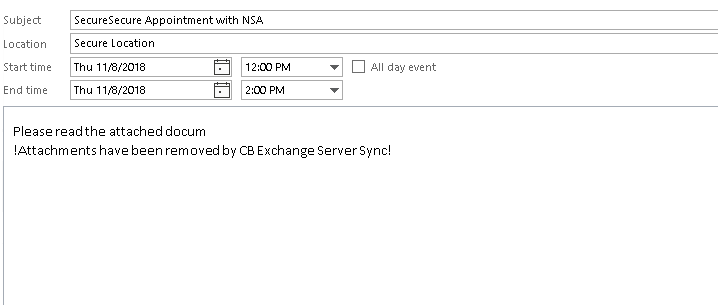
- Step 2 - Configure the Restriction Group, for example, to remove attachments, trim the body text and add the prefix “Secure” to synchronized appointments
- Step 3 - Create and Configure the Sync Pair
- Step 4 - Start the Sync Pair
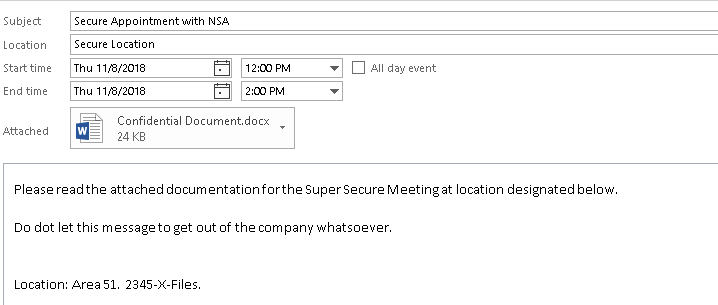
As a result, any synchronized appointment will differ from the original and will follow the rules defined in the restriction group, as shown below.
Calendar Restriction Groups - The result in Outlook
The original appointment with the attachment
and some confidential information.
The synchronized appointment that will be viewed outside. Attachment removed, prefix in subject and body text showing only 30 characters.

Related solutions
Super Secure ExchangeServer Sync
Exchange Server Solutions: Mergers & Acquisitions
Truth Enforcer
Keep Exchange synchronization under your control
Read more in our latest posts:
Trusted & Certified