If you manage Dynamics 365 and SharePoint, you probably don't need another guide telling you how to connect the two.
You already know the basic idea.
Your teams work with customer, account, case, opportunity, or other Dynamics 365 records. Related documents are stored in SharePoint, where users can collaborate, manage versions, and work with documents from within the Dynamics 365 experience.
Microsoft provides native SharePoint integration for this purpose.
The problems usually start after the integration is working.
A user can access a Dynamics 365 record but have unexpected access to its SharePoint documents. Your SharePoint libraries can become difficult to govern. Metadata can become inconsistent. And as your users, teams, business units, and documents grow, manually keeping the two environments aligned becomes harder.
That's why good Dynamics 365 SharePoint best practices need to go beyond the initial setup.
You need to think about what happens when your security model, users, documents, and business processes change.
Here are five common pitfalls to watch for.
What are the most common Dynamics 365 - SharePoint pitfalls?
The five issues worth paying attention to are:
- Assuming Dynamics 365 permissions automatically apply to SharePoint
- Designing SharePoint structure without considering security and governance
- Treating document metadata as an afterthought
- Assuming an integration that works today will remain manageable at scale
- Manually fixing permission gaps instead of synchronizing security models
Let's look at each one.
1. Assuming Dynamics 365 permissions automatically apply to SharePoint
This is the first assumption you should challenge.
Dynamics 365 security and SharePoint permissions are not the same thing.
When you give someone access to a Dynamics 365 record, that does not automatically mean SharePoint will reproduce the same security decision for the corresponding document.
Microsoft's documentation explicitly lists SharePoint permissions alongside Dynamics 365 security roles for document-management tasks. Users accessing SharePoint content from Dynamics 365 need appropriate permissions on the relevant SharePoint site and document locations.
So, imagine this scenario.
A salesperson has access to an account in Dynamics 365.
The account has contracts, pricing documents, proposals, and other files stored in SharePoint.
Now the salesperson's Dynamics 365 access changes.
What happens to the SharePoint documents?
If your answer is "SharePoint should automatically know," that's exactly the assumption you need to validate.
How to avoid the problem
Treat Dynamics 365 security and SharePoint permissions as two connected but distinct layers.
Before going live, test scenarios such as:
- A user gains access to a record
- A user's access is removed
- A user changes teams
- A record changes ownership
- A user's business-unit access changes
- A document needs to be shared with a specific user or team
Don't test only whether the document opens.
Test whether the right person can open it, and the wrong person cannot.
That distinction becomes increasingly important as your Dynamics 365 environment grows.
2. Designing SharePoint structure without considering security and governance
Your SharePoint architecture can look perfectly organized and still create problems later.
You may start with a straightforward structure:
Customer → Account → Documents
Then your organization grows.
Different business units need different access. Teams change. New document types are introduced. More records are connected to SharePoint. Administrators start creating exceptions.
Suddenly, the structure that looked simple during implementation becomes difficult to govern.
SharePoint itself has a detailed permission model, including permissions at different scopes and permission inheritance.
That's why your document architecture and security architecture should not be designed independently.
How to avoid the problem
Before creating your SharePoint structure, define:
- Which Dynamics 365 records require document management
- Which SharePoint sites and libraries will store those documents
- Which users or teams should access them
- Where permissions should be inherited
- Where exceptions are genuinely required
- Which administrators own the structure
- How access changes will be handled over time
Your goal isn't to create the most complicated permission model.
It's to create one that remains understandable and manageable when your environment is no longer small.
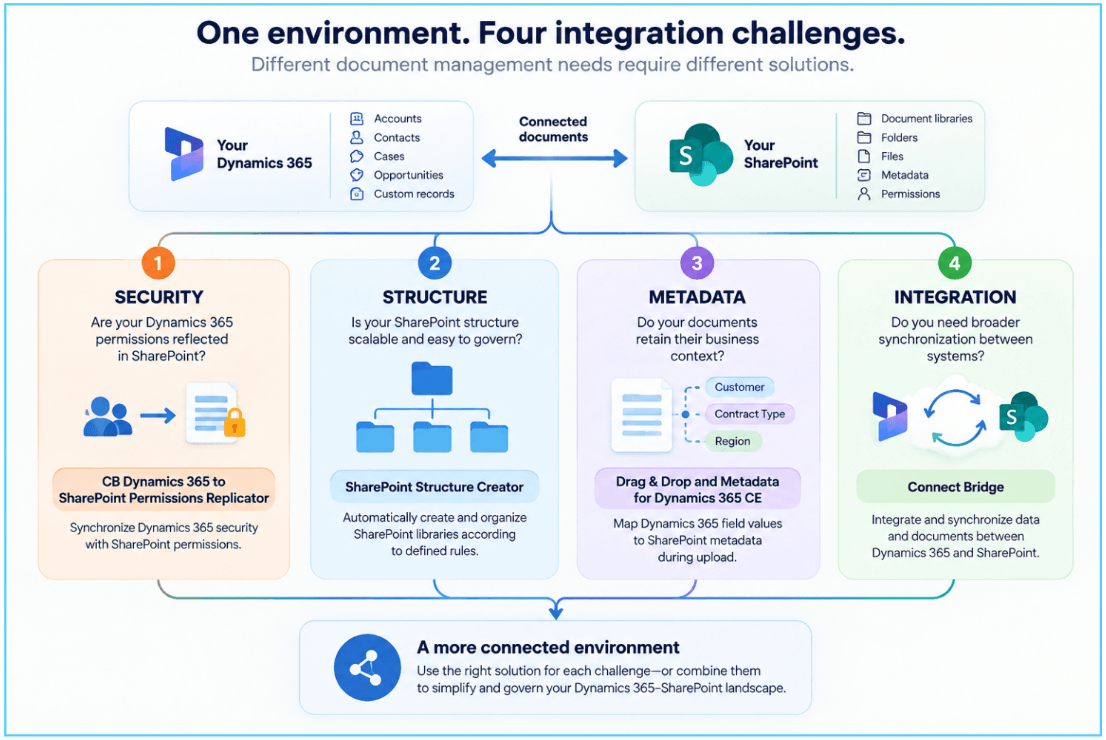
SharePoint Structure Creator from Connecting Software automatically creates or selects SharePoint document libraries according to rules you define. You can structure libraries by record, time period, starting characters of a record name or ID, or combinations of these rules.
This gives you a way to distribute documents across a more manageable SharePoint structure instead of allowing everything to accumulate in one library.
It is particularly relevant when you're also using CB Dynamics 365 to SharePoint Permissions Replicator, because the two solutions address complementary problems:
- Permissions Replicator → keeps Dynamics 365 security aligned with SharePoint permissions.
- SharePoint Structure Creator → organizes the SharePoint side according to rules designed to keep the structure manageable as it grows.
The distinction is important: better folder and library structure does not by itself synchronize permissions. Structure and security solve different parts of the same scalability problem.
3. Treating document metadata as an afterthought
Here's another problem you may recognize.
Your documents are safely stored in SharePoint.
But six months later, someone asks:
"Can you find all the contracts for customers in this region that expire this quarter?"
The documents exist.
Finding them is the problem.
When users manually enter metadata, different people can classify the same type of document differently. One person might enter "Contract," another "Customer Contract," while someone else leaves the field blank.
At scale, your SharePoint library can become increasingly difficult to search, filter, and govern.
This is why document metadata belongs in your Dynamics 365 document management strategy, not as an afterthought.
How to avoid the problem
Decide which Dynamics 365 fields should provide context for the corresponding SharePoint documents.
For example:
Dynamics 365 record
Customer: ABC Ltd.
Region: APAC
Account owner: Jane Smith
Document type: Contract
↓
SharePoint document metadata
Customer: ABC Ltd.
Region: APAC
Owner: Jane Smith
Document type: Contract
The objective is to reduce unnecessary manual entry and maintain useful context around the document.
Connecting Software addresses this area with Drag & Drop and Metadata for Dynamics 365 CE, which it describes as mapping Dynamics 365 field values to SharePoint metadata when documents are uploaded.
For you as an administrator, the value is straightforward: your users spend less time manually classifying documents, while your SharePoint content retains more of the business context already present in Dynamics 365.
4. Assuming an integration that works today will remain manageable at scale
Your integration may work perfectly during implementation.
That doesn't necessarily tell you how it will behave operationally as your environment grows.
Today you may have:
- A manageable number of users
- A small number of teams
- A few business units
- Limited document libraries
- Relatively simple security requirements
Over time, you may have thousands of users, multiple teams, more complex ownership structures, and significantly more documents.
Now every change has consequences.
- A user changes teams.
- A business unit changes.
- A record changes ownership.
- A new security requirement is introduced.
- Your integration needs to keep up.
How to avoid the problem
Ask architectural questions before your environment becomes difficult to manage:
- What information needs to move between Dynamics 365 and SharePoint?
- Does it need to move one way or both ways?
- What happens when a Dynamics 365 record changes?
- What happens when a user or team changes?
- How are permissions synchronized?
- How are failures identified?
- Who owns the integration after implementation?
This is where a dedicated integration layer can become relevant.
Connecting Software's Connect Bridge is designed to connect business applications and synchronize information between them, including Dynamics 365 and SharePoint.
The important distinction is that Connect Bridge addresses broader integration and synchronization requirements. It doesn't mean you need to replace Microsoft's native document-management capabilities.
5. Manually fixing permission gaps instead of synchronizing security models
This is where a small administration problem can become an architectural problem.
You receive a ticket:
"This user can access a document they shouldn't."
You fix the SharePoint permission.
A few weeks later:
"Another user's access is wrong."
You fix that too.
- Then a team changes.
- A user changes business units.
- A record changes ownership.
You are back to checking permissions manually. If this sounds familiar, the question isn't simply:
"Which SharePoint permission do I need to change?"
The better question is:
"How should my Dynamics 365 security model be reflected in SharePoint?"
That's a fundamentally different question.
Connecting Software specifically addresses this scenario with its CB Dynamics 365 to SharePoint Permissions Replicator. The company describes the solution as synchronizing the Dynamics 365 security model with SharePoint permissions, including security information such as users, teams, business units, and access at the relevant levels.
This is the point where an integration strategy can move beyond simply connecting two applications.
You are creating a more consistent relationship between who can access a record in Dynamics 365 and who should have access to the corresponding SharePoint content.
Where Connecting Software fits into your Dynamics 365 - SharePoint architecture
It's important to separate three different requirements.
1. You need document management
If your requirement is simply to store and manage documents associated with Dynamics 365 records, Microsoft's native SharePoint integration may already meet your needs. Microsoft provides document management capabilities that allow users to work with SharePoint documents from Dynamics 365 and Dataverse applications.
2. You need Dynamics 365 security reflected in SharePoint
This is where CB Dynamics 365 to SharePoint Permissions Replicator becomes particularly relevant.
Instead of asking administrators to continually maintain two separate permission models, the solution is designed to synchronize Dynamics 365 security with SharePoint permissions.
3. You need broader Dynamics 365 - SharePoint synchronization
If your requirements go beyond document management and include broader application-to-application synchronization, Connect Bridge provides the integration layer.
This distinction is important.
Connecting Software isn't replacing the systems you already depend on.
It's addressing the gaps that can appear between those systems.
A practical Dynamics 365 - SharePoint checklist
Before you consider your implementation complete, ask yourself:
Security
- Do Dynamics 365 and SharePoint have clearly defined permission responsibilities?
- What happens when a user's Dynamics 365 access changes?
- What happens when a user changes teams or business units?
- Can a user access a SharePoint document without having the expected Dynamics 365 access?
Document structure
- Is your SharePoint architecture designed for your current and future business structure?
- Are permissions and document locations easy to understand?
- Have you minimized unnecessary permission exceptions?
Metadata
- Which Dynamics 365 fields should become SharePoint metadata?
- Are users manually entering information that already exists in Dynamics 365?
- Can users easily search and filter documents?
Integration
- What needs to synchronize between the two platforms?
- Is the requirement one-way or bi-directional?
- How will you handle changes and integration failures?
Scale
- Will your approach still work when your number of users, teams, records, and documents increases?
- How much manual administration will be required?
If several answers are unclear, your integration may be technically functional without being fully governed.
View how CB Dynamics 365 to SharePoint permissions Replicator works
Frequently asked questions
Does Dynamics 365 automatically synchronize permissions with SharePoint?
What permissions are required for Dynamics 365 - SharePoint document management?
What are the most common Dynamics 365 SharePoint integration issues?
How can you avoid SharePoint permission problems in Dynamics 365?
When should you use an integration platform for Dynamics 365 and SharePoint?
How does metadata improve Dynamics 365 - SharePoint document management?
The bottom line
Your Dynamics 365–SharePoint integration can be working exactly as configured and still leave you with a governance problem.
The real question isn't simply:
"Can my users access their documents?"
It's:
"Can I control who has access, keep document context intact, and maintain that relationship as my Dynamics 365 environment changes?"
That requires you to think beyond the initial integration.
Use native Dynamics 365–SharePoint document management where it meets your requirements. Then look at the gaps around security synchronization, metadata, and broader integration.
For security alignment, Connecting Software's CB Dynamics 365 to SharePoint Permissions Replicator addresses the specific challenge of synchronizing the Dynamics 365 security model with SharePoint permissions. For broader application synchronization, Connect Bridge provides the integration layer.
The goal isn't to replace the systems your teams already use.
It's to make the connection between them easier to manage, govern, and scale.
Want to see how this works in your environment?
Explore how Connecting Software helps organizations align Dynamics 365 security with SharePoint permissions and simplify document management at scale.
Explore the solution → Connecting Software